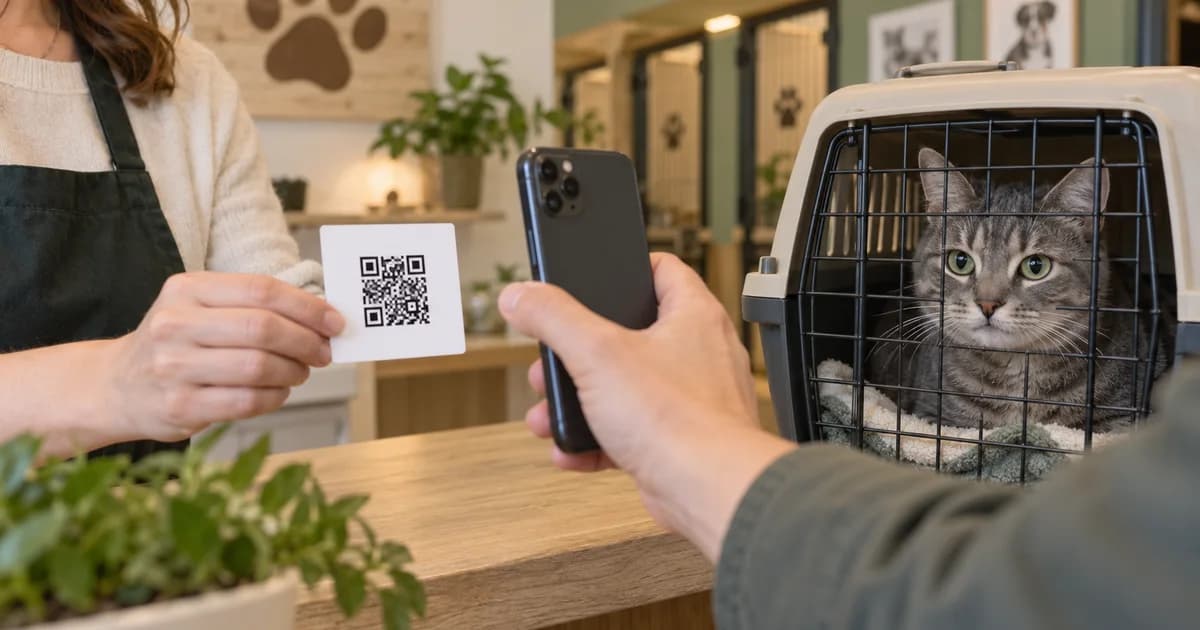
There are two paperwork jobs: finding a file you already have, and getting a file someone else has. This guide covers the second. A clinic may have the PDF ready on its computer while you are standing at the desk. A sitter may have a discharge sheet on their phone. Give them a place to send it while the document is in front of them.
What the QR code opens
The QR code is another way to open your upload page. It does not grant an account login or reveal your stored medical history. Anyone who has the link can submit a supported file for the pets shown on that page, so share it with the people you intend to collect records from. The link is limited to 30 days, and you can close or rotate it sooner.
QR codes and copied links use the same collection flow; the difference is how the person opens it. A QR code is useful in person, while a copied link works better in an email to a clinic.
How to create your pet-record QR code
- Open your pet’s Records section and tap Clinic. If incoming files are waiting, this opens the review inbox. Tap Email a clinic for records to reach the request page. With no pending files, the Clinic tile can open the request page directly.
- Open Share upload page. On the Email a Clinic screen, expand that section to show the upload-page controls.
- Turn on Accept uploads. The switch creates or enables your 30-day upload access. Check the pet names shown and the Active until date before handing it over. You need a pet in the app first.
- Show the QR code, or tap Copy link or Share. Ask the clinic to scan the code with its phone, or paste the link into your request email. Both open the same upload page.
- Tell the sender which pet and documents the request is for. A working upload link does not tell a busy front desk which pages you still need. Confirm the pet’s name and ask for the complete files.
- Return to the clinic-upload inbox to review submissions. Open each file, check the pet and contents, then accept or reject it. Arrival is not the same as being saved to your pet’s records.
If the screen says the current URL cannot be recovered on this device, use Rotate link to create a fresh link and QR code. Rotation immediately stops the previous URL from working. Send the new link to anyone who still needs to upload; an older screenshot of the code will no longer work.
If you are asking the clinic by email
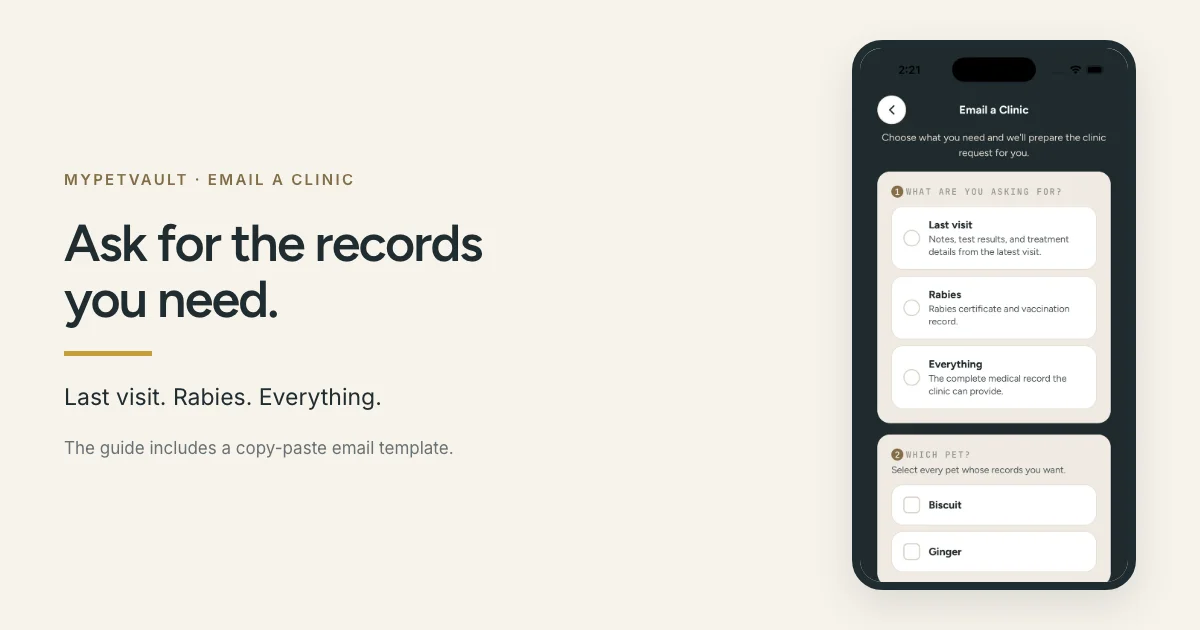
Use Email a Clinic to prepare your request in your own email app. Verify the clinic’s address, choose the record types, and include the upload link if you want it to send files through that page. Review the draft and send it yourself. If the clinic prefers ordinary attachments, you can save those and upload them manually later.
For the full document list, email wording, and follow-up script, use the guide to requesting pet records from a vet. That is the main guide for making a records request. The steps here explain the upload link that can travel with it, so you do not have to rebuild the request from a feature description.
What the clinic or caregiver needs to do
- Open the link or scan the QR code. Check that the page is for the intended owner and pets.
- Choose the correct pet and select the document. Supported formats are PDF, JPG, and PNG, up to 15 MB per file.
- Complete the upload and check for its confirmation. If it fails, keep the original and tell the owner rather than assuming it arrived.
The sender does not need to install MyPetVault, create an account, or ask for your password. If a clinic cannot use the link under its own workflow, email attachments remain an option. The upload page is there to make collection easier, not to require a clinic to change how it works.
Review what arrives before accepting it
Open the incoming file and confirm the pet’s name, every page, and the readable dates. Is it the signed certificate you requested, or only an invoice? Does a packet contain another pet’s pages? Reject an incorrect submission and ask for the specific replacement rather than filing it under the nearest match.
The app requires you to open the file before accepting it. Accepted documents can then be organized with your pet’s records; Smart Scan is a separate step for reviewing suggested record details. Free users can approve records for their first registered pet. Storage and upload limits still apply; compare Free and Plus for the plan limits.
Close or replace the link when you are done
- Turn off Accept uploads when you no longer want submissions through that link.
- Rotate if the link went to the wrong person or you need a fresh shareable URL. The old URL stops working immediately.
- Check the expiry date before chasing a clinic that has not uploaded yet. A 30-day link is not permanent.
- Keep the accepted source documents with the pet’s file. Closing the intake link is different from deleting a document you already saved.
One timing detail deserves its own line: the 30-day upload link receives files. Plus document download links expire after 2 days and send files out. They do different jobs. Sending the clinic upload QR code to a boarding facility will not give it the vaccination proof it needs to inspect.
A quick check before sharing the code
- The right pets are shown on the upload page.
- The access is on and the expiry date gives the sender enough time.
- The request names the missing documents clearly.
- The sender knows how to confirm a completed upload.
- You know where to return to review the files.
Common questions
Can someone see my existing records through the QR code?
No. The code opens an upload page for submitting files. It does not let visitors browse or download your existing records.
Does the clinic need an app or account?
No. It opens the web link, chooses the correct pet, and uploads a supported document.
How long does the upload link work?
It has a 30-day access window. You can turn off accepting uploads or rotate the link sooner. Rotation stops the previous URL from working.
What files can someone upload?
PDF, JPG, and PNG files, up to 15 MB each. Storage and upload limits also apply.
Can I use this QR code as boarding vaccine proof?
No. It collects documents for you. Send the required signed certificate or use the outgoing records-sharing flow to hand records to the facility.
If your records are still scattered across clinic inboxes, start by collecting one missing document. MyPetVault is a pet record app that lets the clinic upload the file and leaves the review with you. Your first pet is free.
Collect your first pet’s records
Tommy Cao, founder of MyPetVault
Sources & further reading
Keep reading
 How to Request Your Pet's Records From a Vet8 min read
 Pet Bloodwork Costs: Focused Panels and When to Discuss Yearly Testing9 min read