A boarding desk asking for “the records” and a new vet asking for “the records” usually mean different things. Sending the same old email thread to both is how you end up with a missing certificate, three irrelevant invoices, and a follow-up while you are trying to leave for the airport. Start with the person asking, then choose the handoff.
Before you send: ask two questions
- What exactly do you need? Ask for a written list: a rabies certificate, a vaccine summary, the complete chart, or care instructions. Ask whether a summary is enough or the original documents are required.
- Where should it go? Verify the email address with the business or caregiver. Ask whether they use an upload portal, accept email attachments, or can open download links. Add your pet’s name and booking or appointment date so staff can match the file.
If records are missing, use the records-request email template to ask the clinic for the specific documents. Keep that request separate from the outgoing message to the facility. A clinic saying it will send the records is useful progress; it does not mean the recipient has received them.
For a new vet: send the history, then confirm arrival
Ask whether the new clinic wants records directly from the previous practice. A complete transfer can include visit notes, vaccination history, the signed rabies certificate, laboratory results, imaging reports, and medication history. A one-page vaccine summary is unlikely to cover all of that. Ask any specialist or emergency clinic that treated your pet for its records too.
Send your owner copy if the new clinic accepts it, and tell staff which practices may still be sending files. Mention an upcoming appointment or current treatment so they can identify what is urgent. Use the vet-record transfer guide to check that the chart arrived and was filed under the right pet. Bring your copy to the visit as backup. Your summary helps introduce the history; it does not replace the clinic’s review of the source records.
For boarding or daycare: send proof against its checklist
Get the facility’s current vaccine list and timing rules before choosing files. For dogs, this commonly means rabies, a distemper/parvo combination, and Bordetella; other requirements vary. Cats have their own list. Send the actual documents the facility accepts, with vaccination and due dates readable, and check that the dates cover the stay through pickup.
Use the boarding records prep plan for the handoff, and the dog vaccine requirements or cat boarding requirements to check the policy. If your recipient needs the signed certificate, a typed summary alone is not enough. Ask for confirmation before check-in, especially if you sent links that expire. “I sent it last week” is a frustrating conversation to have with a carrier in one hand.
For a groomer: confirm the proof it accepts
Ask the groomer for its own requirements. Do not assume the previous groomer’s list still applies. Send the requested vaccination evidence and any care information the groomer asks for, such as an allergy or handling concern. If it requires a rabies certificate, send a readable signed copy rather than a photo of the collar tag. If that document is missing, follow the lost rabies certificate guide.
A full medical-history email may include more information than the groomer needs. The MyPetVault summary contains several record categories, so review its contents before sending it. If the business wants only one certificate, you can send that file from your own email app instead. Choose the method that matches the request.
For a sitter or caregiver: make the next action clear
A sitter needs information they can use: your contact number, the regular vet and emergency clinic, allergies, the current medication instructions, and the care plan you agreed with them. Confirm medication instructions with your veterinarian and keep them current. A historical list can include a finished prescription; explain which items are active rather than expecting a sitter to infer that from old paperwork.
Pair the records with a pet emergency information sheet. Include who can authorize treatment and how to reach them. Walk through the handoff before you leave, and have the sitter open the files on their own phone. If they will need a document throughout a week-long stay, ask them to save it while the download link works. A record email is a handoff of information; it does not by itself give someone ongoing access to your account.
How to send records in MyPetVault, tap by tap
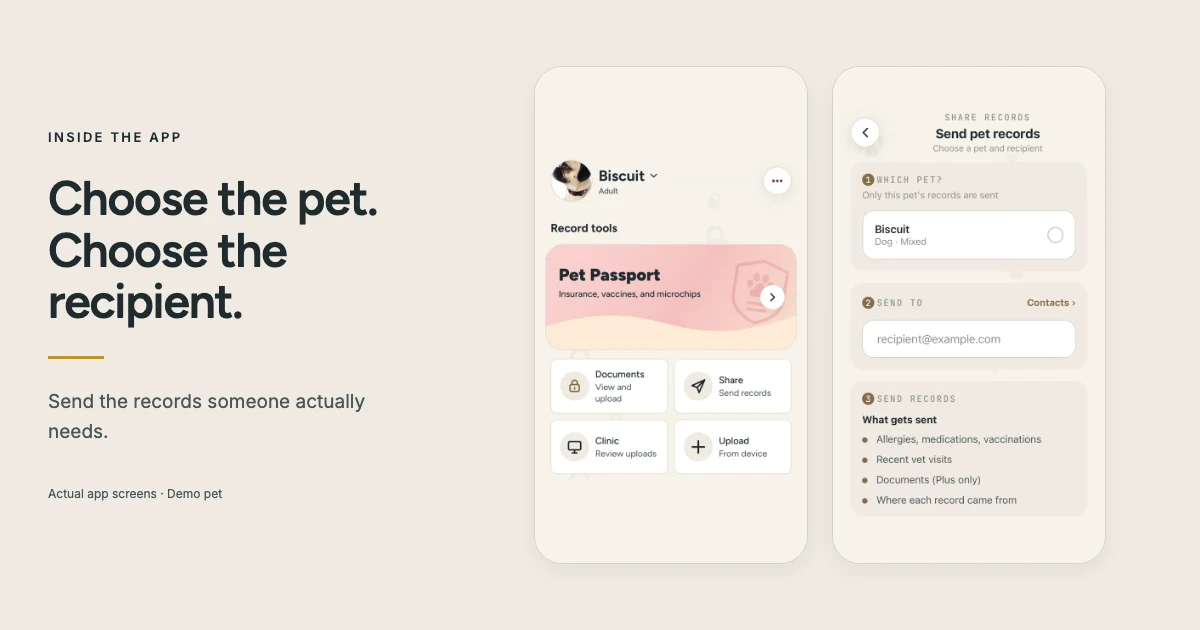
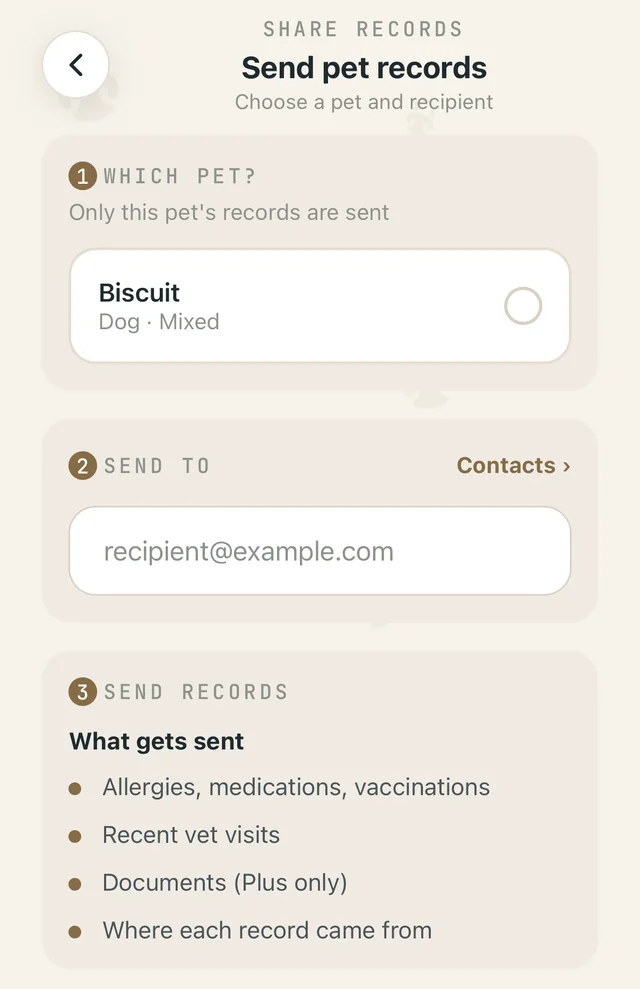
- Open the pet’s Records section and tap Share. The next screen is called Send pet records. If you have not added the pet or saved its records yet, do that first.
- Check Which pet? Confirm the name before moving on. If several pets are available, use Change to choose the right one. The send flow is for that selected pet.
- Fill in Send to. Enter the verified email address or choose a saved contact. Check the address even if the contact name looks familiar; an old clinic address can still be in your list.
- Read What gets sent. The summary includes allergies, medications, vaccinations, recent vet visits, and where records came from. Plus can add document download links. This is a summary of saved information, so correct a wrong date or a finished medication in your records before sending.
- Tap Send records. In the confirmation, choose whether to include your name, email, and phone. Review the selected pet and recipient again, then tap Open Mail app.
- Review and send the email in your mail app. Check the address, subject, and content. Add the appointment or booking date and explain any outstanding records. Opening a draft does not send it; press your mail app’s send button.
- Ask the recipient to confirm receipt. Check that the files or links opened and were matched to the right pet. Save the sent message so you know which version you handed over.
Free summary sharing vs Plus document sharing
Free sends the records summary without original-file attachments or document download links. Plus adds those documents. If boarding asks for a signed certificate and you use Free, send your own saved copy separately. You can still use the summary for context. Neither plan changes what counts as acceptable proof at a facility or what your vet needs for a clinical handover.
With Plus, document links expire after 2 days. Ask staff to open and save the files promptly. If a clinic filters messages containing links, use the Having trouble? option and Send as attachments, then choose the documents in that flow. Confirm the attachments are present before sending. Compare the Free and Plus plans if you regularly need this kind of handoff.
If the email or document does not arrive
- No email draft opens: make sure your phone has a mail app set up with a sending account. You can send the needed document manually while checking the app issue.
- No reply from the recipient: check the address in Sent, call the desk, and ask it to check spam. Resend to its verified address if needed.
- A download link has expired: prepare a fresh handoff. Forwarding the old message does not make its old links valid again.
- The file opens but is not accepted: ask which item or detail is missing, then request that specific source document from the clinic.
If someone needs to send documents to you, use the clinic upload link and QR guide. That is a different direction: the upload page receives files for your review and does not show your existing records to its visitors.
Common questions
Can I share pet records without Plus?
Yes. Free includes the records summary email. It does not include original-document attachments or download links in that email. Send your own saved certificate separately if the recipient requires it.
Does MyPetVault send the email automatically?
No. The app prepares the message and opens your mail app. You review it and press send there.
How long do document download links last?
Plus document download links expire after 2 days. Ask the recipient to save the files promptly or prepare a fresh handoff when needed.
Can I send a QR code to prove vaccination?
The clinic upload QR code collects documents for your review; it does not display vaccination proof. Send the required certificate or records through the outgoing sharing flow.
Should I send a sitter my pet’s whole history?
Ask what they need for the agreed care. A current care sheet, medication instructions, contacts, and relevant source documents are often more useful than an unexplained history. Review the app summary before sending it.
Keep a file you can hand over without rebuilding it each time. MyPetVault is a pet record app for saving the papers and preparing a records summary when someone asks. Your first pet is free.
Start with your first pet free
Tommy Cao, founder of MyPetVault
Sources & further reading
Doing this in the app? Sharing & family help guide
Keep reading
 Pet Emergency Information Sheet: What to Prepare Before You Need It7 min read
 Flying With a Cat or Dog: Health Certificates, Timing, and the Records Airlines Actually Check8 min read