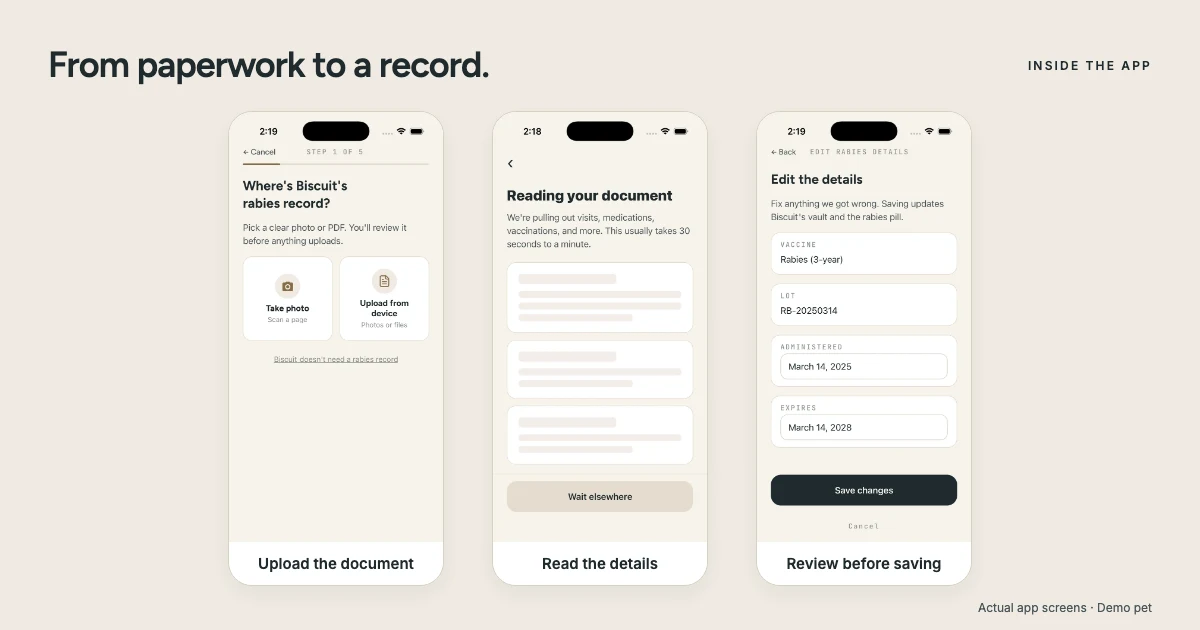
Vet paperwork is written for the visit, not for the moment six months later when you need one date. Smart Scan helps you avoid retyping the whole thing. The useful part is having the original and the suggested details together, so you can check what you will rely on later.
Before you start: files and limits
- Use PDF, JPG, or PNG, up to 15 MB per file. A clear clinic PDF is usually easier to read than a tilted photograph.
- Include all pages and keep the pet’s name, dates, instructions, and signatures visible. Check the image at full size before uploading.
- Confirm your account email if the app asks you to do so. You need internet access to upload and read the document.
- Free includes 5 lifetime health-document Smart Scans and 2 separate rabies-certificate Smart Scans. Plus removes the lifetime scan cap, with daily safety limits. Storage limits still apply.
Use health paperwork with actual details: visit summaries, vaccine records, prescriptions, or similar clinic documents. For a receipt or invoice with no health details, leave scanning off and store the file. If you reach the scan allowance, you can still add record details by hand and store supported files within your storage quota. See Free vs Plus for the comparison.
Step 1: Choose the document and turn on scanning
- Open the pet’s Records section, then Documents. Choose the upload option in the document manager.
- Choose Add document manually. Pick the file from your phone, choose a photo, or use the camera. Where the source buttons are shown, they are labeled Take photo and Upload from device.
- Check the selected file. Make sure it is the complete document for this pet. If you bundled photographs into a PDF, check the page order too.
- Turn on Smart scan. The switch appears after you choose a file. It is optional; leaving it off stores the document without scanning it for health-record suggestions.
- Tap Scan and upload. Keep the original file available for comparison. If the app reports a format, size, verification, or storage problem, resolve that message before assuming the upload completed.
Step 2: Let it read the file
The processing screen says Reading your document. The app describes the usual wait as about 30 seconds to a minute, but that is an estimate, not a deadline. A longer or difficult file can take longer. You can tap Wait elsewhere and return to your documents later; leaving the screen does not stop the processing.
If it says Still processing, check the document list later instead of repeatedly uploading the same file. If it fails, return to documents, read the error, and check whether the original opens and is readable. A clearer photo or the clinic’s original PDF may be needed. A partial result does not mean every page was understood.
Step 3: Check the suggestions and save
- Check which pet the document belongs to. Correct the document’s pet or context if the review asks. A family invoice or packet may mention several animals.
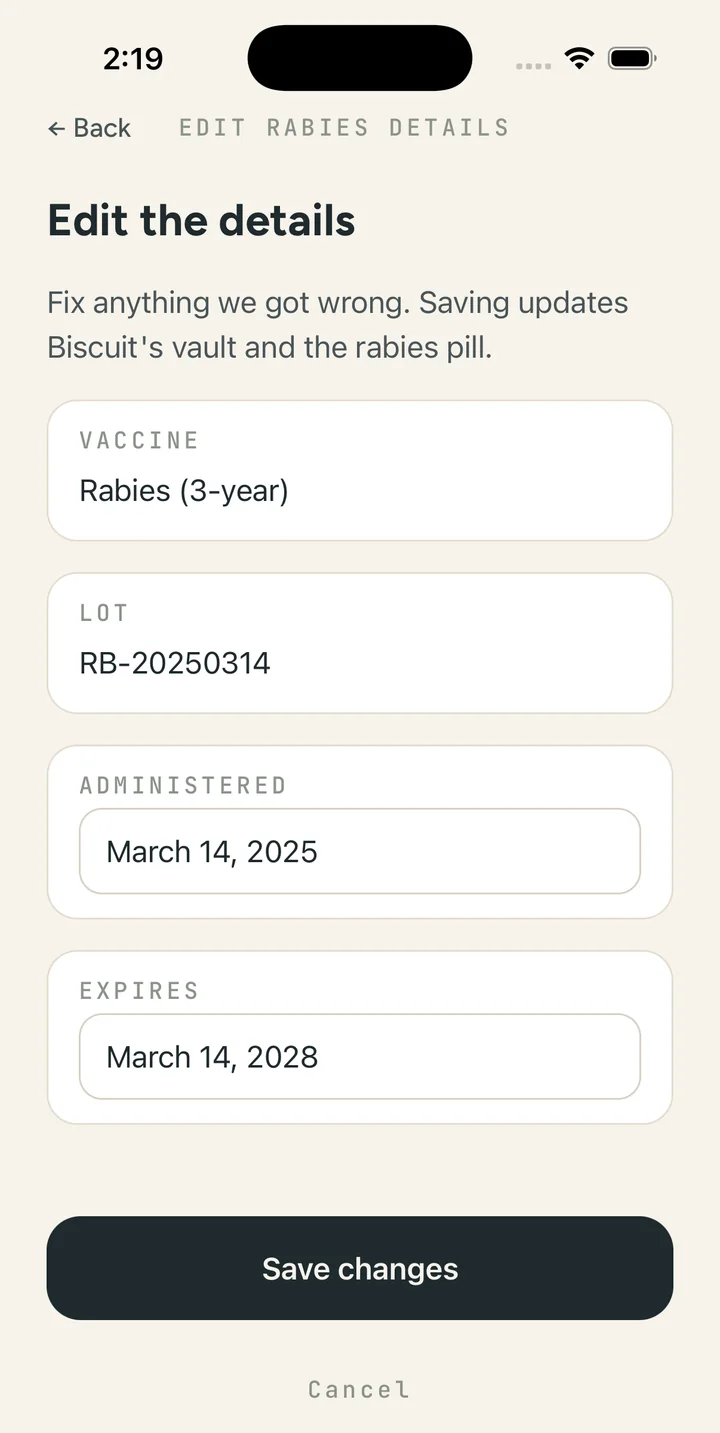
- Compare each suggested detail with the paper. Pay close attention to vaccine dates, medication names and instructions, visit dates, weight units, and clinic information. A date printed beside a vaccine is not always the next due date.
- Correct or skip items. Do not fill in a missing dose or unclear date from memory just to finish the review. Ask the clinic for clarification when the source itself is unclear.
- Save the checked review. The final button may say Save review or Save records, depending on what the document contains. You can also choose Finish without saving if you do not want to add the suggestions.
- Open the saved record and its source afterward. Confirm the details are under the intended pet. Keep the original so you can check it or share it when someone asks.
This is the important part: MyPetVault does not silently make every scan suggestion a permanent health record. The Smart Wizard gives you a review step. If a document refers to a discontinued medication, do not treat it as a new instruction to give that medication. The source and your veterinarian settle care instructions, not the scan.
Three details worth a second look
- Dates: distinguish the date a vaccine was given, a printed document date, and any documented next due date. Do not treat them as interchangeable.
- Medication instructions: compare the name, strength, amount, and frequency with the original. If the paper is unclear, ask your vet rather than accepting a plausible guess.
- Repeated records: a packet may repeat the same visit or vaccination on several pages. Check the existing history before adding another copy, and keep the relevant source.
Rabies certificates have their own job
To make the Pet Passport ready to share, upload your pet’s rabies certificate through the rabies-certificate flow. Scanning an unrelated visit summary is not a substitute for that certificate. Keep the signed source readable and check its vaccine and expiry dates. The rabies records guide explains what to keep ready; the replacement guide helps if you do not have it yet.
What Smart Scan cannot decide
It is not medical advice. It does not diagnose, treat, recommend medication, or decide what the record means for your pet’s care. It also cannot turn incomplete source paperwork into proof that a boarding facility or airline will accept. Use it to organize what is documented, and ask the clinic about anything unclear.
Once the records are checked, use the sharing guide to send a summary or the original documents. For the rest of the file, see what pet records to keep. The win is being able to find the paper and the useful detail without re-reading a whole packet every time.
Common questions
Does Smart Scan save records automatically?
No. You review the suggested details, correct or skip them, and save the checked review. Uploading the file does not approve every suggestion.
What file types and sizes work?
PDF, JPG, and PNG files up to 15 MB each. Keep pages complete and readable, and stay within your account’s storage quota.
How long does Smart Scan take?
The app estimates about 30 seconds to a minute in usual conditions. It can take longer. You can leave the processing screen and check your documents later.
Is Smart Scan available on Free?
Yes. Free includes 5 lifetime health-document scans and 2 separate rabies-certificate scans. You can also add details by hand.
Will scanning any document make the Passport ready?
No. Upload the rabies certificate through its dedicated flow. Scanning another document does not replace the signed certificate.
Start with one clear document and check it while the visit is still fresh. MyPetVault is a pet record app that keeps the original beside the records you save. Your first pet is free.
Upload your first pet’s document
Tommy Cao, founder of MyPetVault
Sources & further reading
Doing this in the app? Saving records help guide
Keep reading
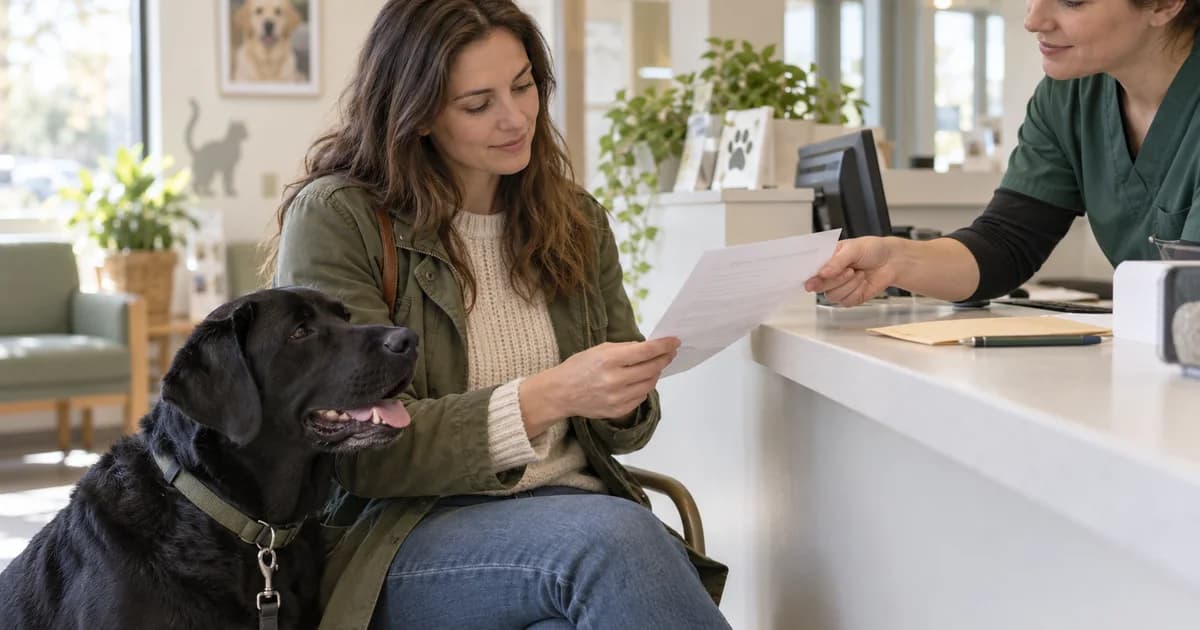 How to Keep Your Pet’s Rabies Certificate Ready8 min read
 Pet Bloodwork Costs: Focused Panels and When to Discuss Yearly Testing9 min read